Changelog

What's new in SimpleDock

Everything we've shipped to keep your docks moving, newest first. New features land here the day they ship.

  1. New

    Run your dock from Claude, ChatGPT, or Grok

    On the Pro plan, you can now connect SimpleDock to Claude, ChatGPT, or Grok and manage your schedule by asking. Check what's arriving, book or move a truck, approve requests, or set up hours and doors.
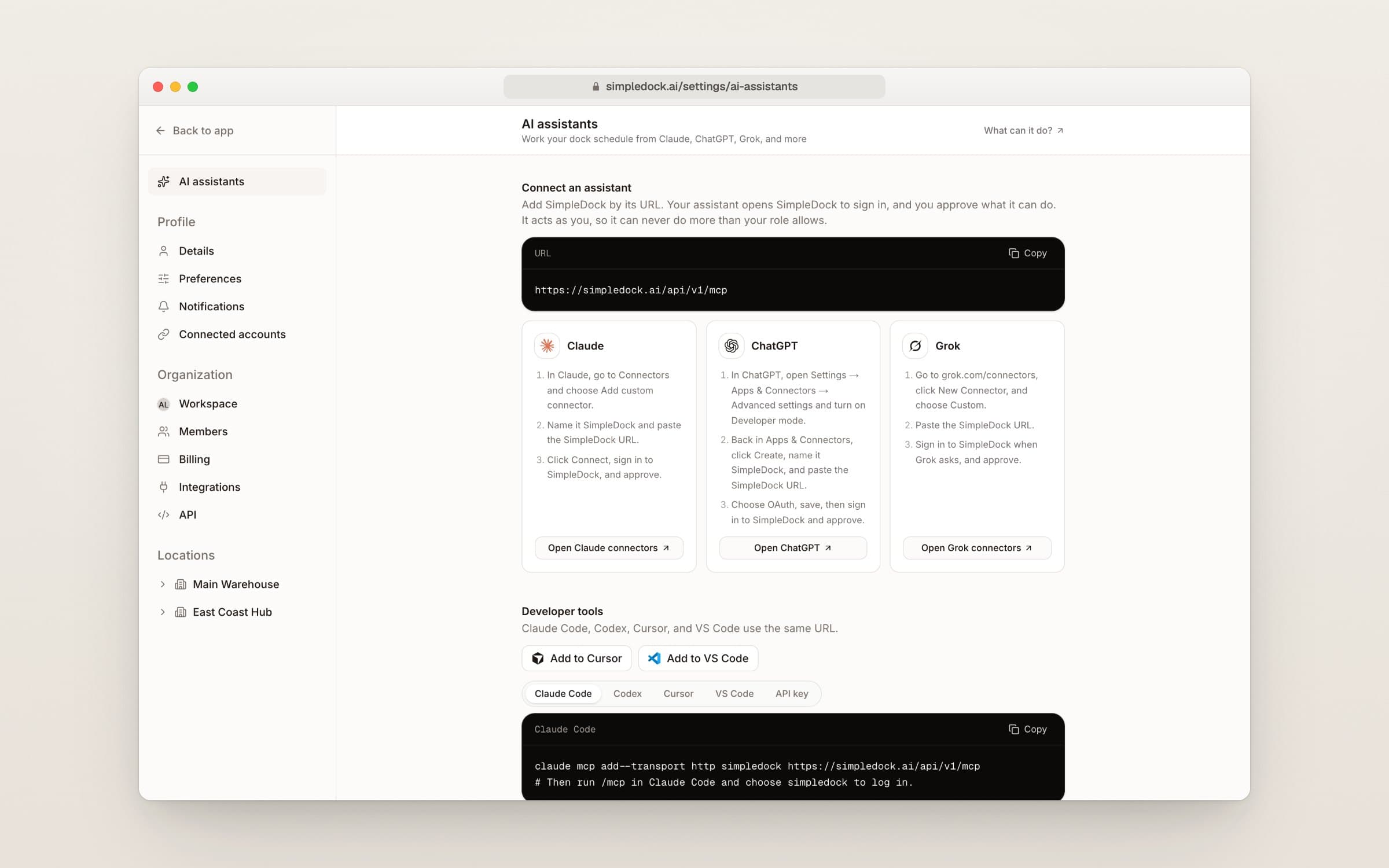
    The AI assistants settings page with setup cards for Claude, ChatGPT, and Grok and a connector URL to copy
    Pick your assistant, paste the link, and sign in.
    • Connect in about a minute: paste one link and sign in. No key to copy.
    • The assistant acts as you, so it can only do what your role allows.
    • AI assistants now have their own page at the top of Settings.
    • See every connected app and when it was last used, and disconnect it in one click.
    • Also works with Claude Code, Codex, Cursor, and VS Code.
  2. Give your dock crew a simple Today list

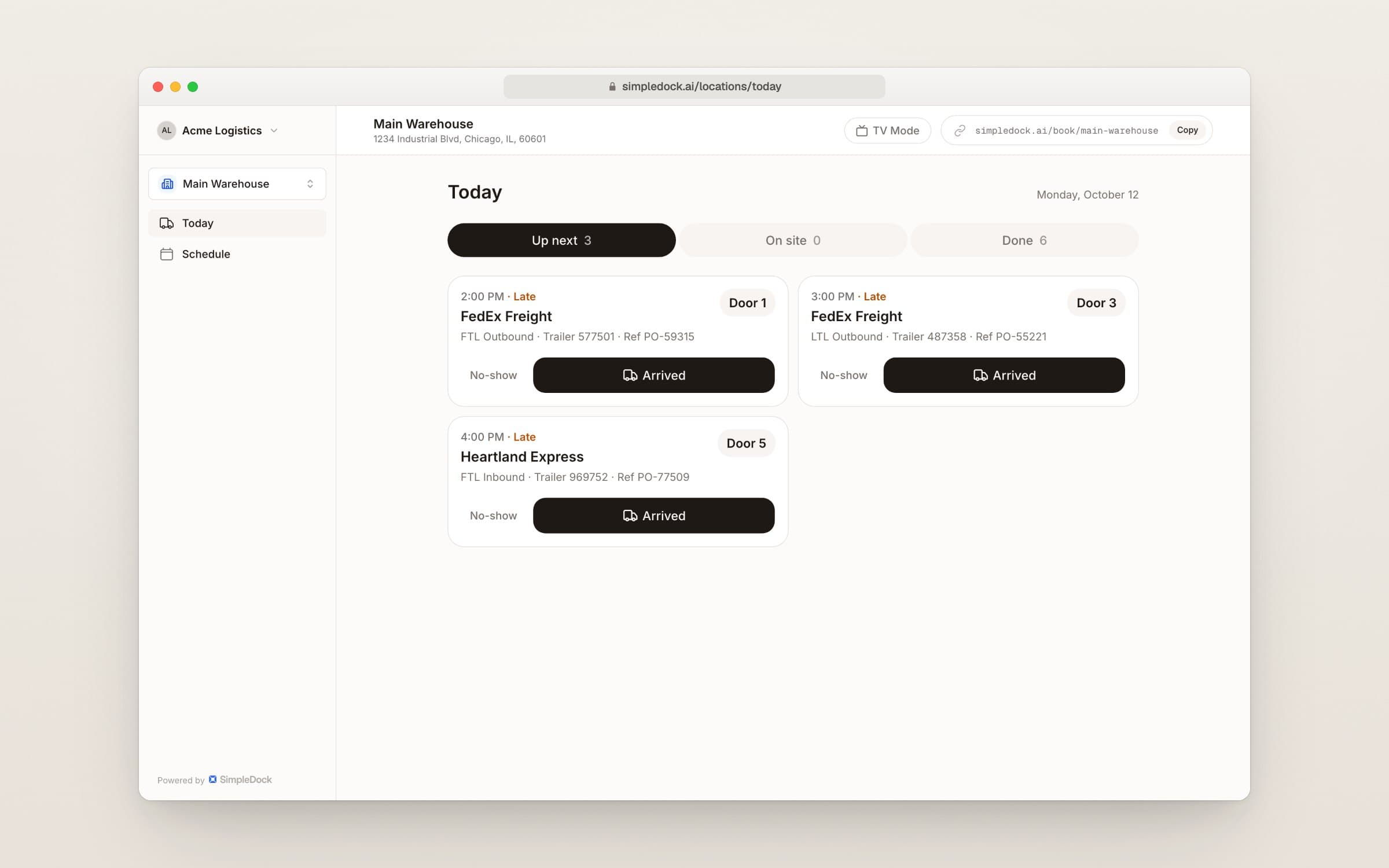
    Dock staff now get a Today list built for phones and tablets. They can mark each truck arrived, completed, or no-show with one tap. You can also set rules for each door and export your appointment history.

    The Today list showing tabs for Up next, On site, and Done, with truck cards and large Arrived buttons
    Dock staff see today's trucks and the next step for each one.
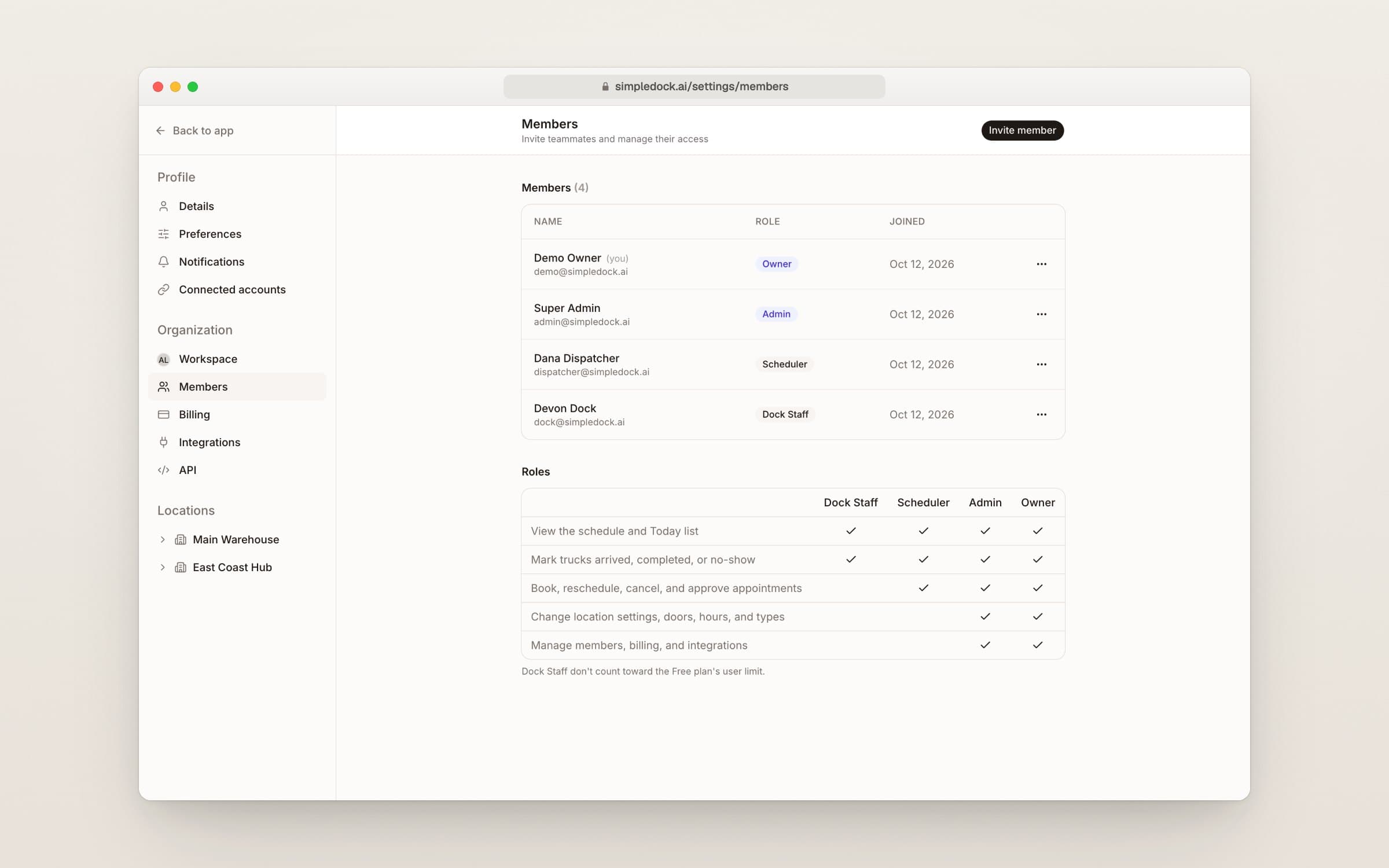
    The Members settings page with a table showing what Owner, Admin, Scheduler, and Dock Staff can do
    See what each role can do before you invite someone.
    • New Dock Staff role opens straight to the Today list.
    • Dock Staff don't count toward the Free plan's user limit.
    • The Member role is now called Scheduler.
    • Limit a door to certain appointment types, or give it its own hours.
    • Admins can download appointment history as a spreadsheet on every plan.
  3. Sync your appointments to Outlook Calendar

    On the Pro plan, you can now send dock appointments to an Outlook calendar, just like Google Calendar. When a booking is rescheduled or canceled, the calendar updates on its own.

    • Works with Microsoft 365 work accounts and personal Outlook.com accounts.
    • Connect Google and Outlook at the same time, each with its own settings.
    • Choose which calendar gets events and which locations to include.
    • If your company needs IT approval, send your IT team our approval page.
  4. Connect SimpleDock to your other systems

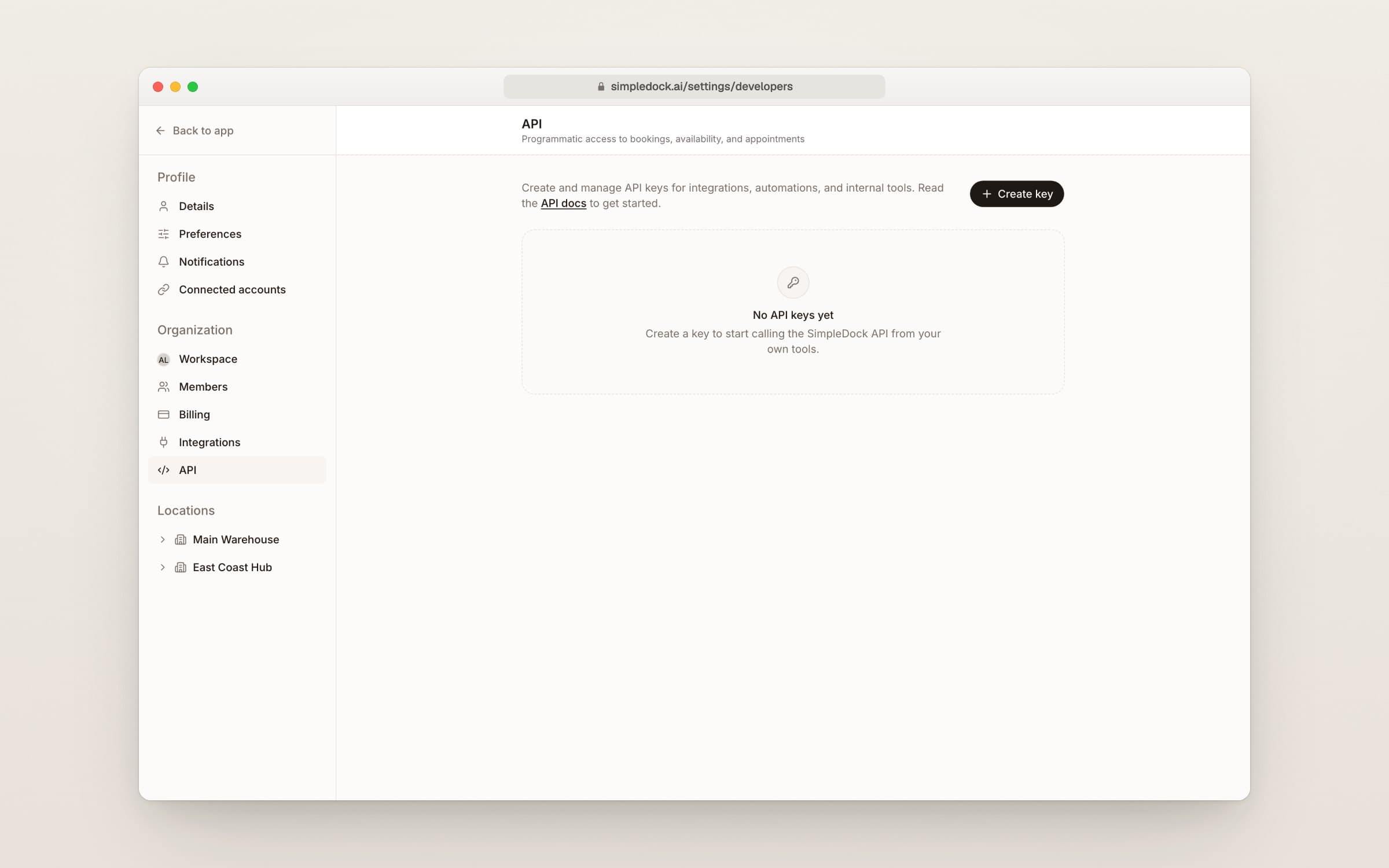
    On the Pro plan, you can now create keys that let your own software and AI assistants see open times and book, check in, or cancel appointments for you.

    Settings page listing keys with their names, created dates, last used dates, and a Create key button
    Create, track, and turn off keys from your settings.
    • Create a key in Settings and name it for the tool that uses it.
    • See when each key was created and last used.
    • Turn off a key at any time with one click.
    • Works with AI assistants like Claude and Cursor.
    • Step-by-step guides are in the Help center.
  5. Put today's dock schedule on a TV

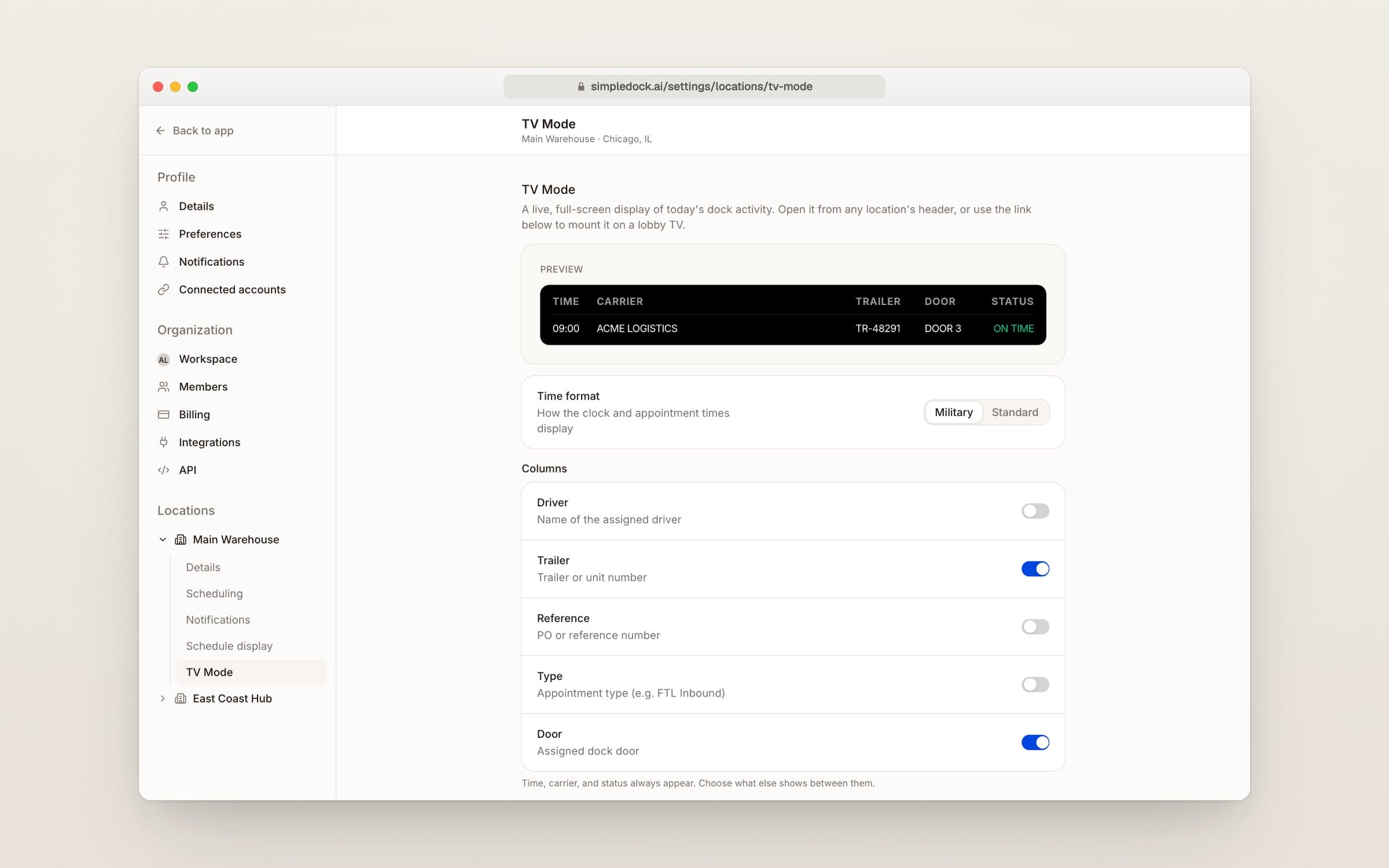
    TV Mode shows today's trucks on a big, live screen you can put up on a warehouse or lobby TV. Open it from the TV Mode button at the top of any location.

    TV Mode settings for a location, with options for the board's columns and time format
    Choose what the board shows.
    • Outbound and inbound trucks in two clear lists.
    • Color bands show late, now, no-show, and pending at a glance.
    • Updates on its own every few seconds.
    • Finished trucks drop off the board as the day goes on.
    • Copy the TV Mode link from your location's display settings.
  6. See how long trucks spend at your dock

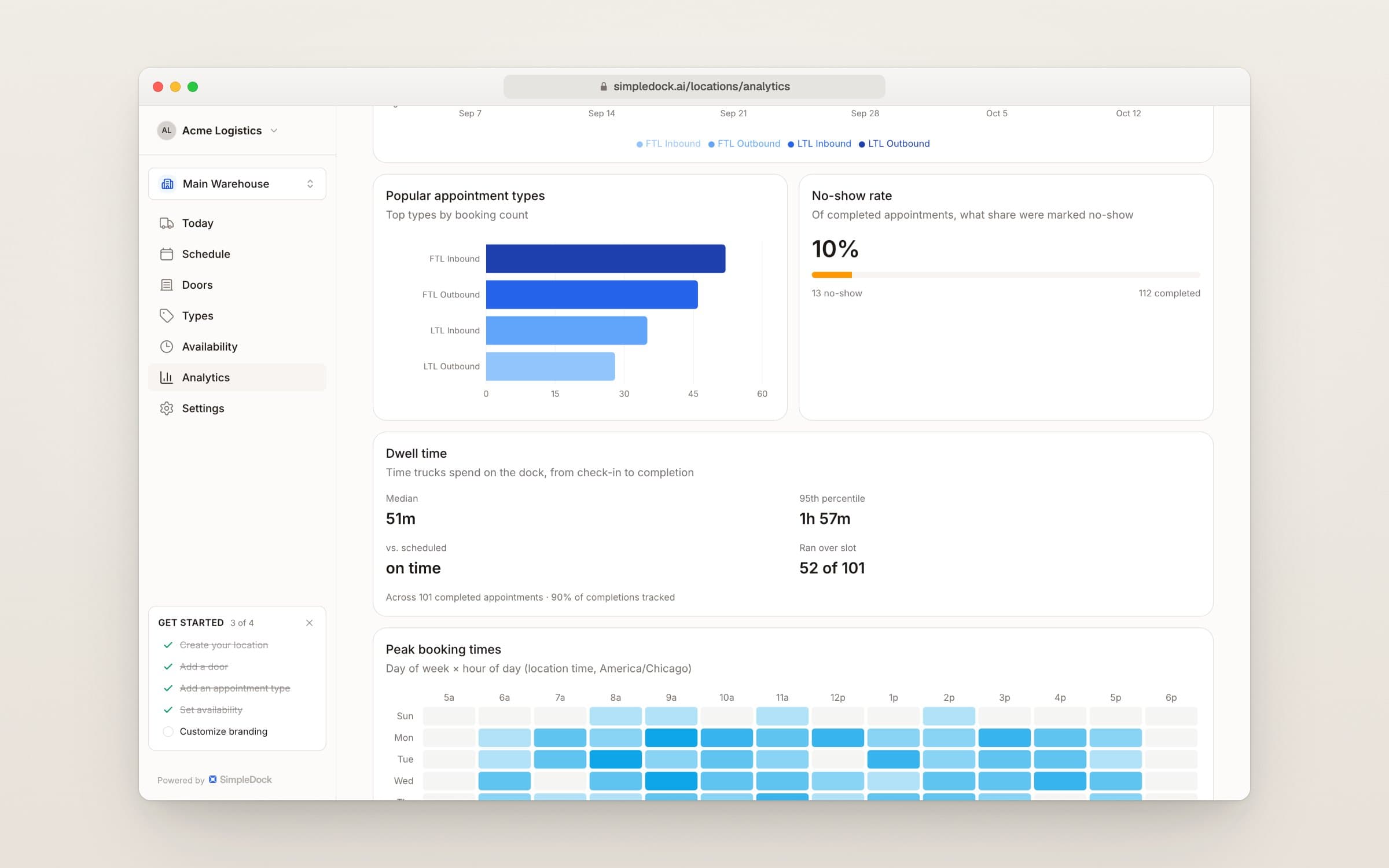
    Turn on dwell tracking to record when a truck arrives and when it's done. Analytics then shows how long trucks stay and how often they run past their slot.

    Analytics page with the Dwell time card showing median time on the dock and how many trucks ran over their slot
    The Dwell time card shows how long trucks stay on your dock.
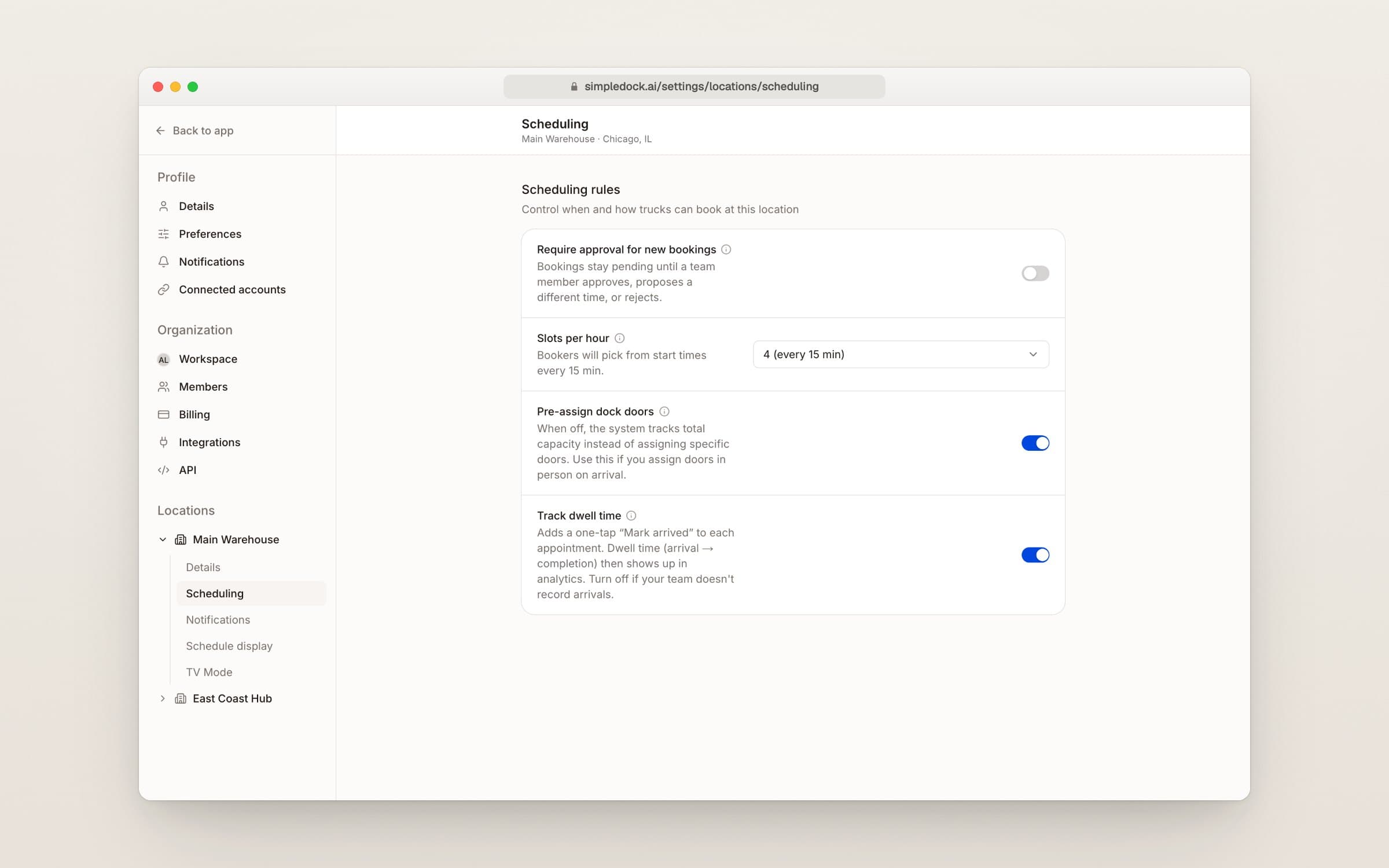
    Scheduling settings with the Track dwell time switch
    Turn on dwell tracking in Scheduling settings.
    • Turn on "Track dwell time" in Scheduling settings.
    • Tap "Mark arrived" when a truck reaches the dock.
    • Each appointment shows check-in, check-out, and dwell time.
    • A new Dwell time card in analytics shows typical stays and overruns.
    • Get an "Arrived at dock" alert in Slack and other integrations.
  7. Close your docks for holidays in a few clicks

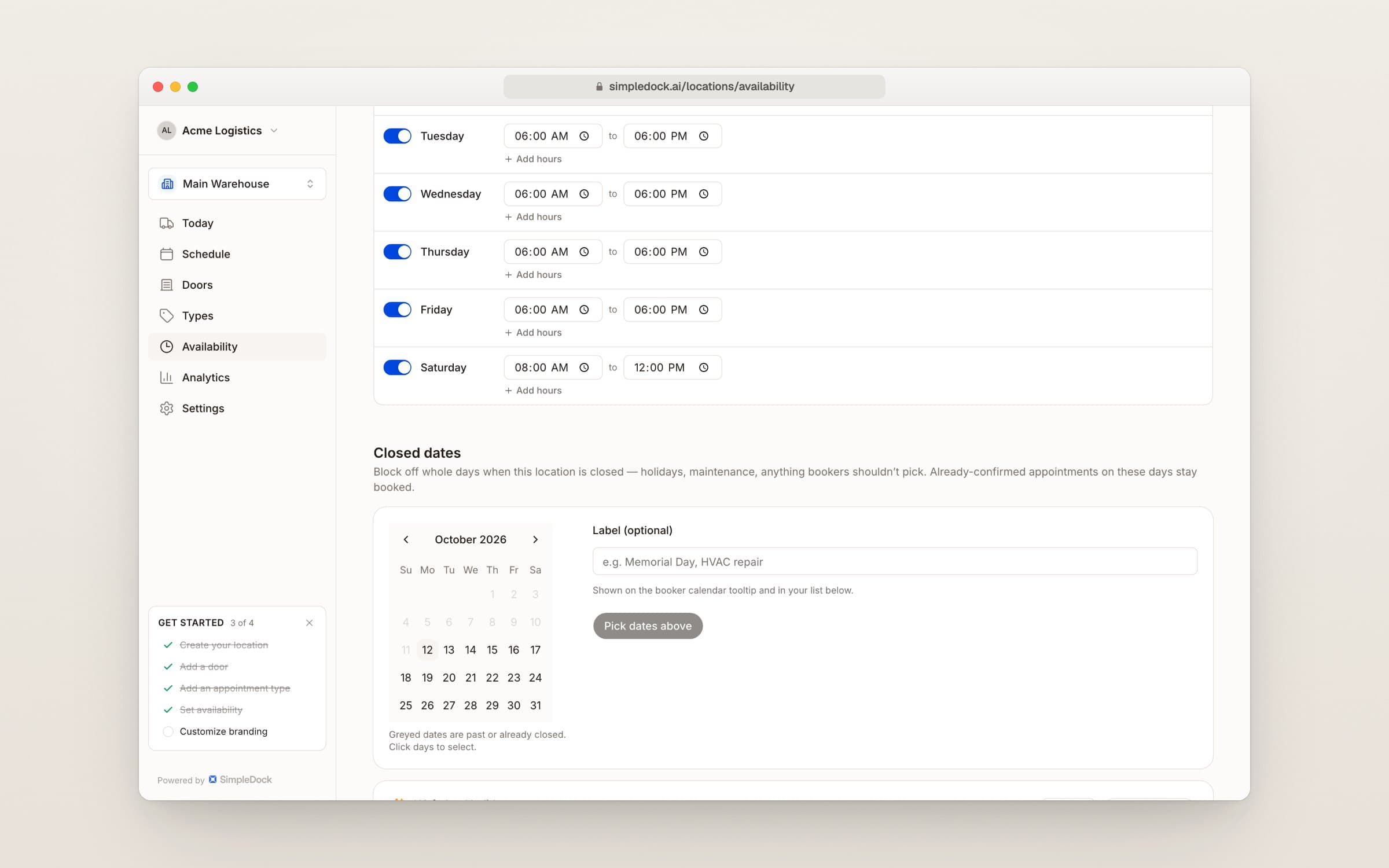
    You can now block off whole days when your location is closed. Carriers can't book those days, and your schedule shows them clearly. Trucks already booked on those days stay booked.

    The Availability page showing the Closed dates section with a calendar, a label box, a US federal holidays card, and a list of upcoming closed dates.
    Pick the days you're closed, or add US holidays in one step.
    • Pick several days at once on a calendar and add an optional label.
    • Add this year's US federal holidays in one step, then uncheck any you work.
    • Carriers see closed days crossed out on your booking page.
    • Your day, week, and month schedule views mark closed days in red.
    • Find it under Availability, in the new Closed dates section.
  8. Carriers can see all their bookings in one place

    Carriers who book with you often can now see every appointment they have made on one page. They sign in with a link sent to their email. No account or password needed.

    • Carriers sign in with a one-time link sent to their email.
    • Upcoming and past bookings show date, time, door, and status.
    • Tap any booking to open it and see the details.
    • Booking emails and the confirmation screen link to this page.
  9. Choose which columns show in your schedule list

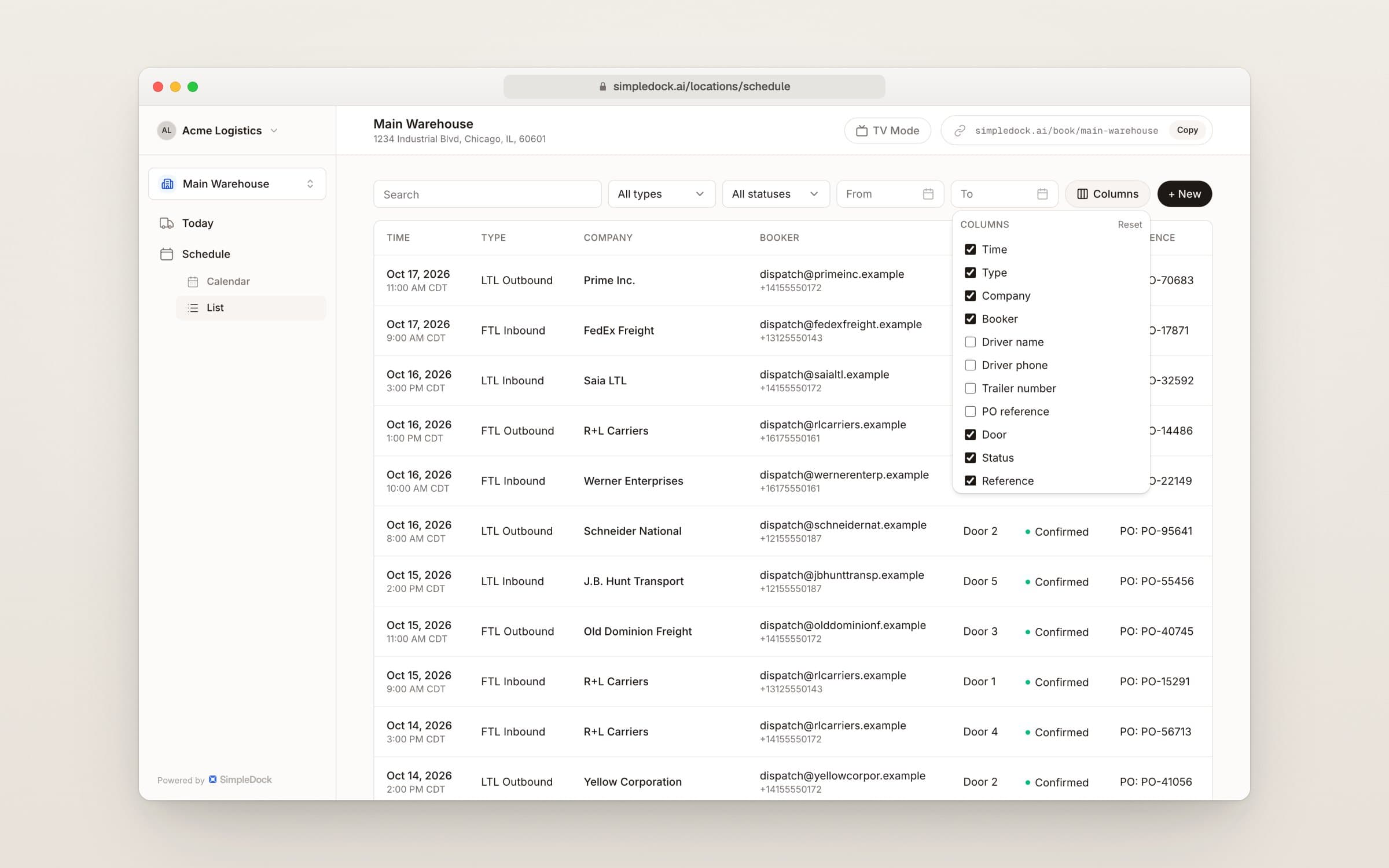
    In the schedule's list view, you can now pick the columns you want to see. Add driver details, trailer number, PO reference, internal notes, or your own custom fields.

    Schedule list view with a Columns button above the table of appointments
    Use the Columns button to choose what your list shows.
    • Show driver name, driver phone, trailer number, and PO reference.
    • Add internal notes as a column.
    • Turn any of your custom fields into a column.
    • Your choice is saved for each location on this device.
    • Use Reset to go back to the standard columns.
  10. Choose which locations email you, and when

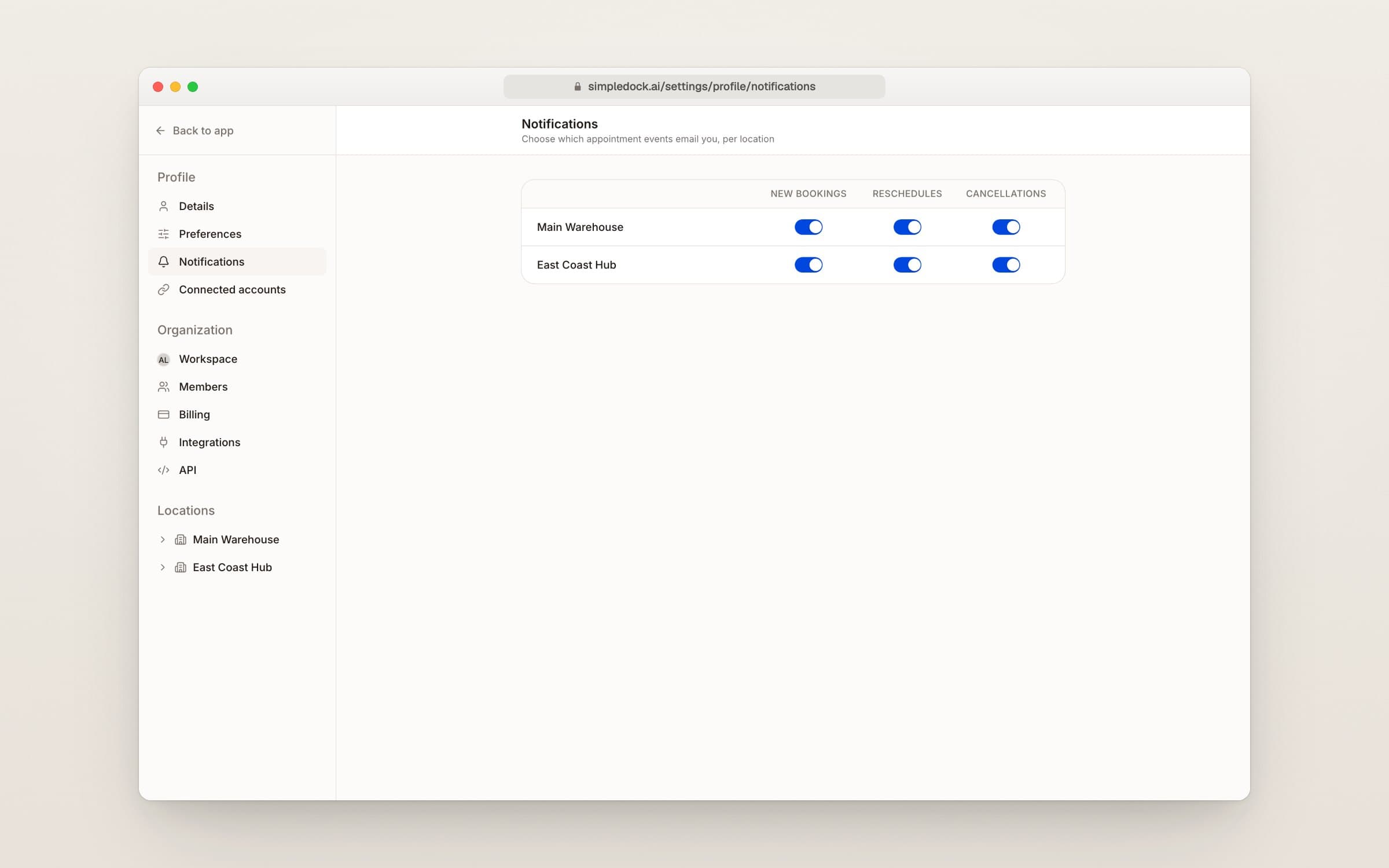
    Everyone on your team can now pick which locations send them emails. You can turn new bookings, reschedules, and cancellations on or off for each location.

    Notifications settings page with a row for each location and on/off switches for new bookings, reschedules, and cancellations
    Pick the emails you want for each location.
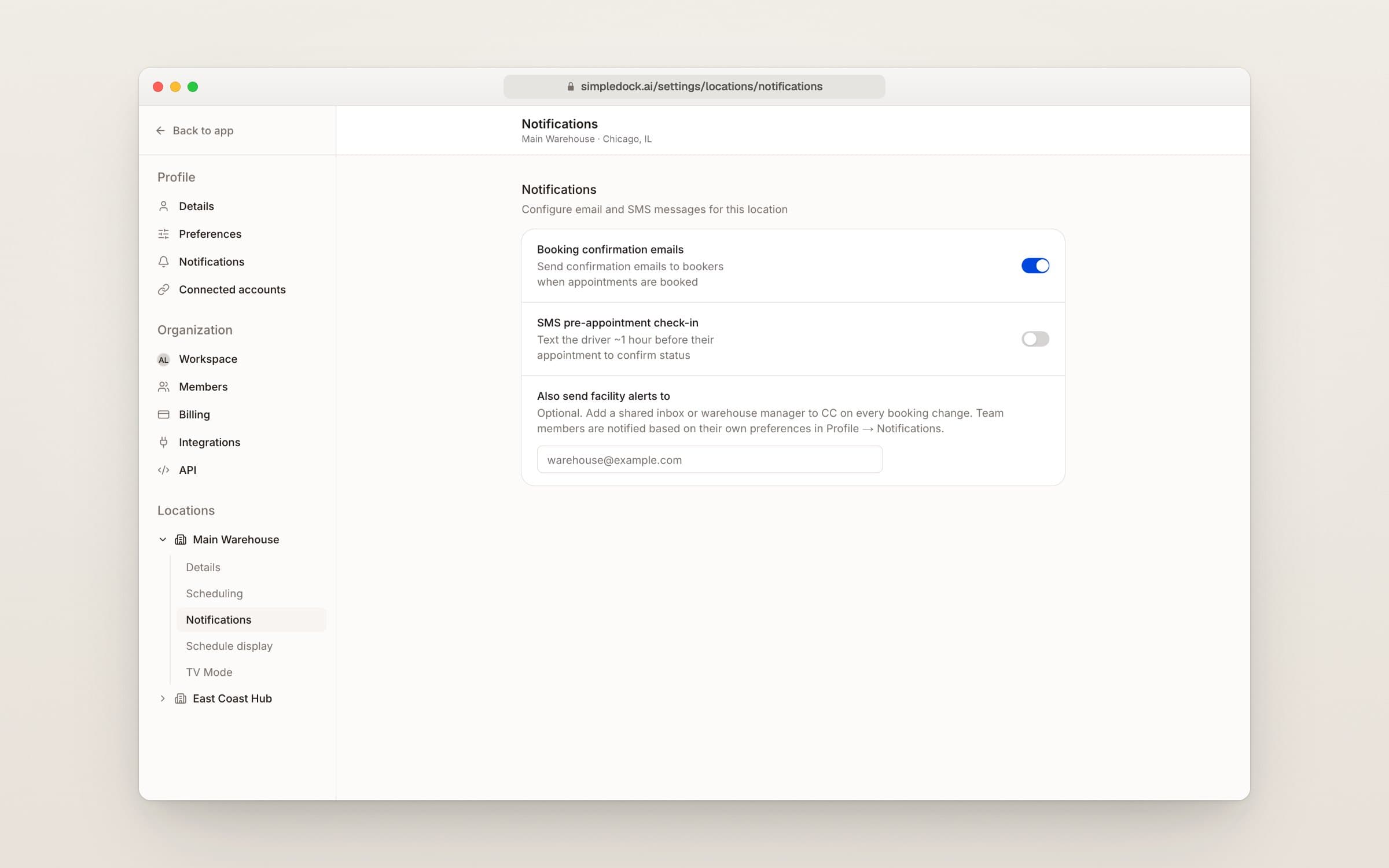
    Location notifications settings with a field to also send facility alerts to a shared email address
    Add a shared inbox to copy on every booking change.
    • Find it in your profile settings under Notifications.
    • Turn each type of email on or off for each location.
    • Every email starts turned on until you change it.
    • You can still add a shared inbox to copy on every booking change.
  11. Get appointment updates in Slack and Zapier

    You can now send appointment updates to Slack, Zapier, or your own tools. In Slack, you can get a message for each update or one summary of the day.

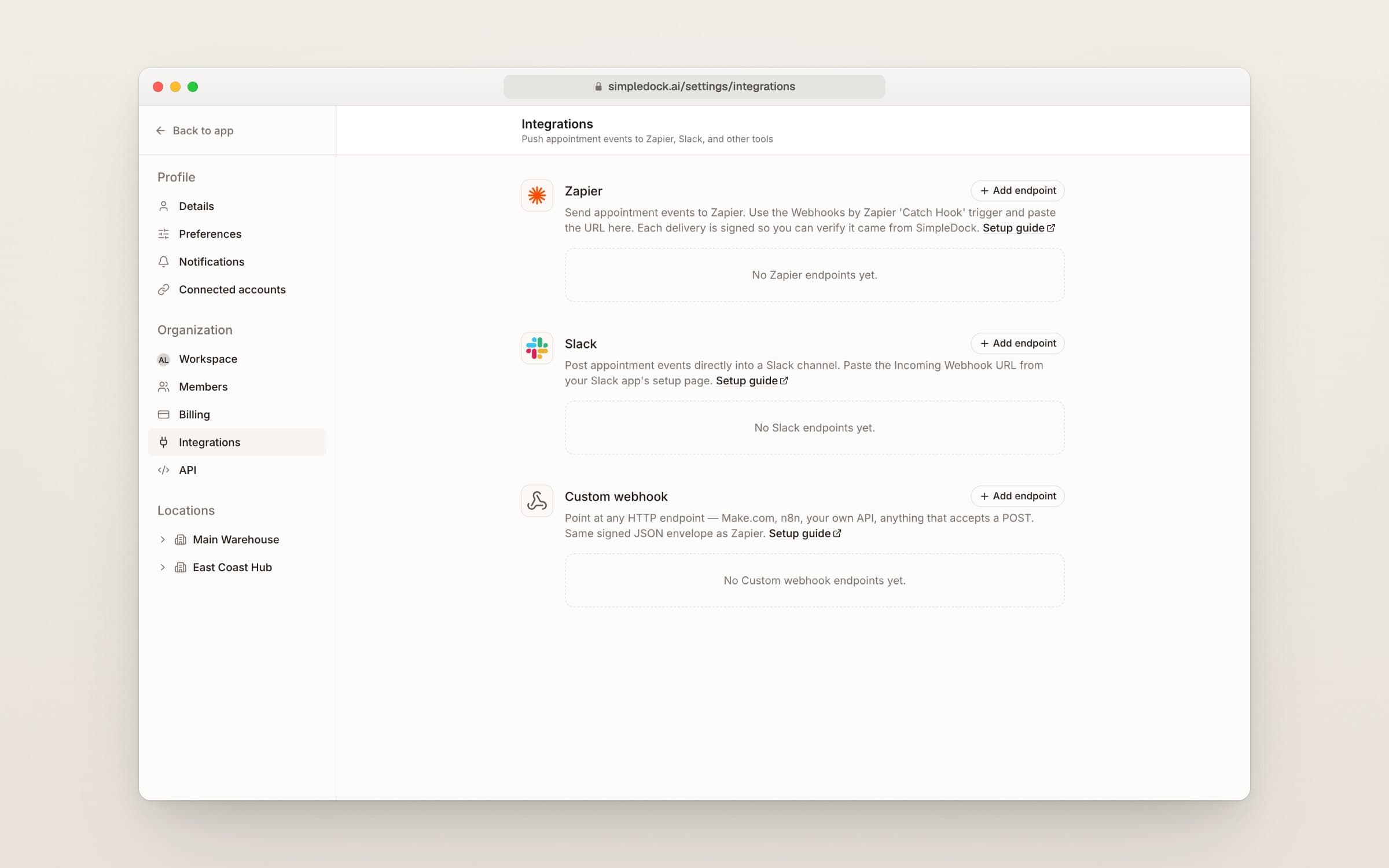
    Integrations settings page with options to connect Slack, Zapier, and other tools
    Connect Slack or Zapier from Integrations settings.
    • Connect Slack, Zapier, or your own tools from Integrations settings.
    • Get a Slack message when trucks book, change, or check in.
    • Or get one daily Slack summary of today's confirmed appointments.
    • Pick the send time and time zone for your daily summary.
    • Send a test message to make sure it works.
  12. Use dark mode for easier viewing

    SimpleDock now has a dark mode. Pick your theme on the new Preferences page in your profile settings. It changes how the app looks for you only.

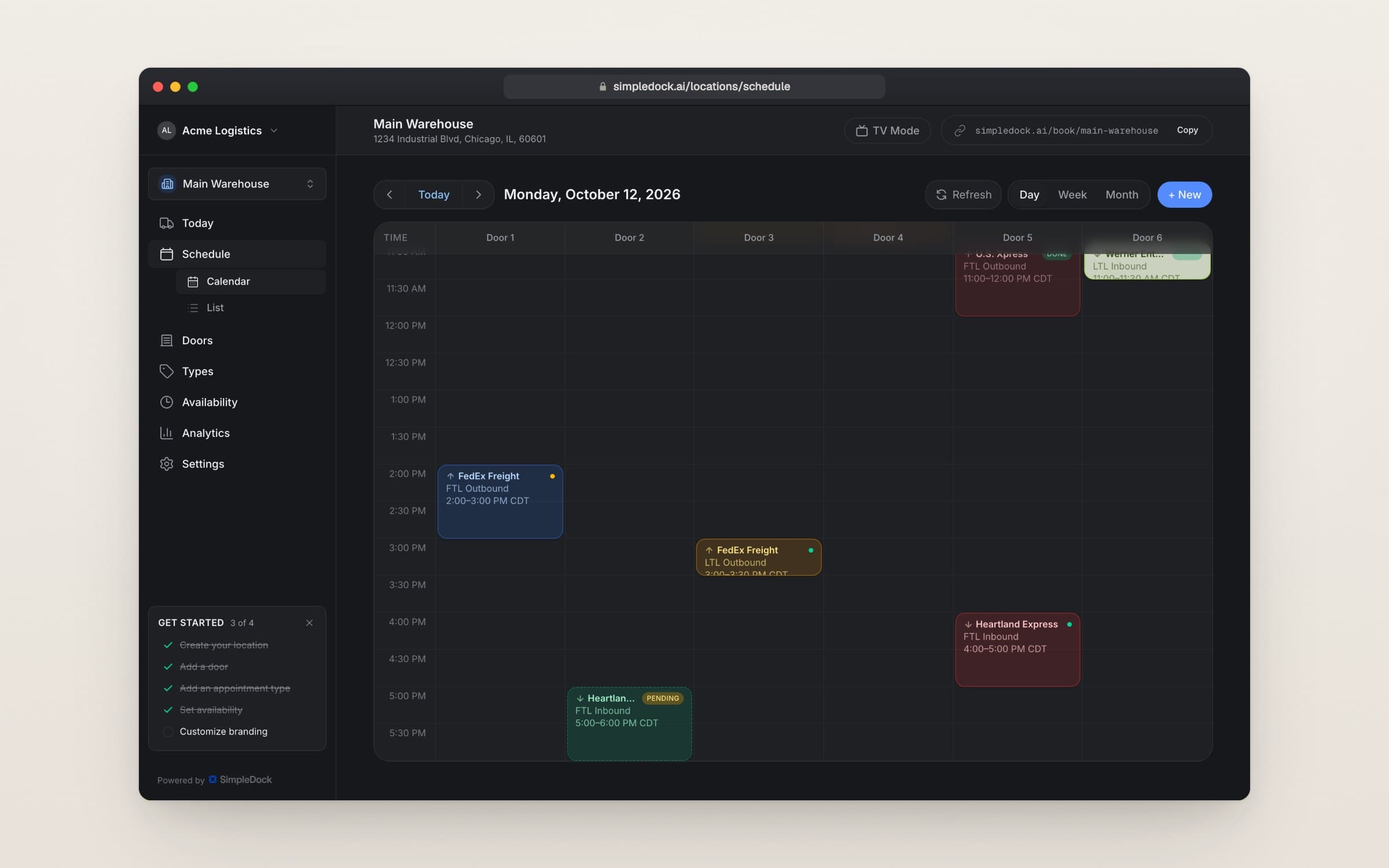
    The day schedule in dark mode, with appointments in colored blocks across dock doors
    The schedule in dark mode.
    • Works on your schedule, analytics, and settings screens.
    • Choose your theme under Profile, then Preferences.
    • Booking and check-in pages for carriers stay light.
  13. Reset your password and find setup help

    If you forget your password, you can now reset it from the sign-in page with a link sent to your email. A new help center also shows you how to connect Google Calendar, Slack, and Zapier.

    • Choose "Forgot password" on the sign-in page to get a reset link by email.
    • Step-by-step guides for Google Calendar, Slack, and Zapier.
    • Guides for sending appointment updates to your own systems, with a test button.
  14. Ask carriers your own questions when they book

    You can now add your own questions to the booking page for each appointment type. Minimum notice and buffer times are now set per appointment type instead of for the whole location.

    • Add short text, number, date, dropdown, or yes/no questions.
    • Hide standard questions like phone or trailer number, or make them required.
    • See answers on each appointment and on the Review page.
    • Set minimum notice and buffer times for each appointment type.
    • Open an appointment type and click Edit to get started.
  15. See your dock appointments in Google Calendar

    You can now connect your Google Calendar from a location's settings. New, changed, and canceled appointments update on your calendar on their own.

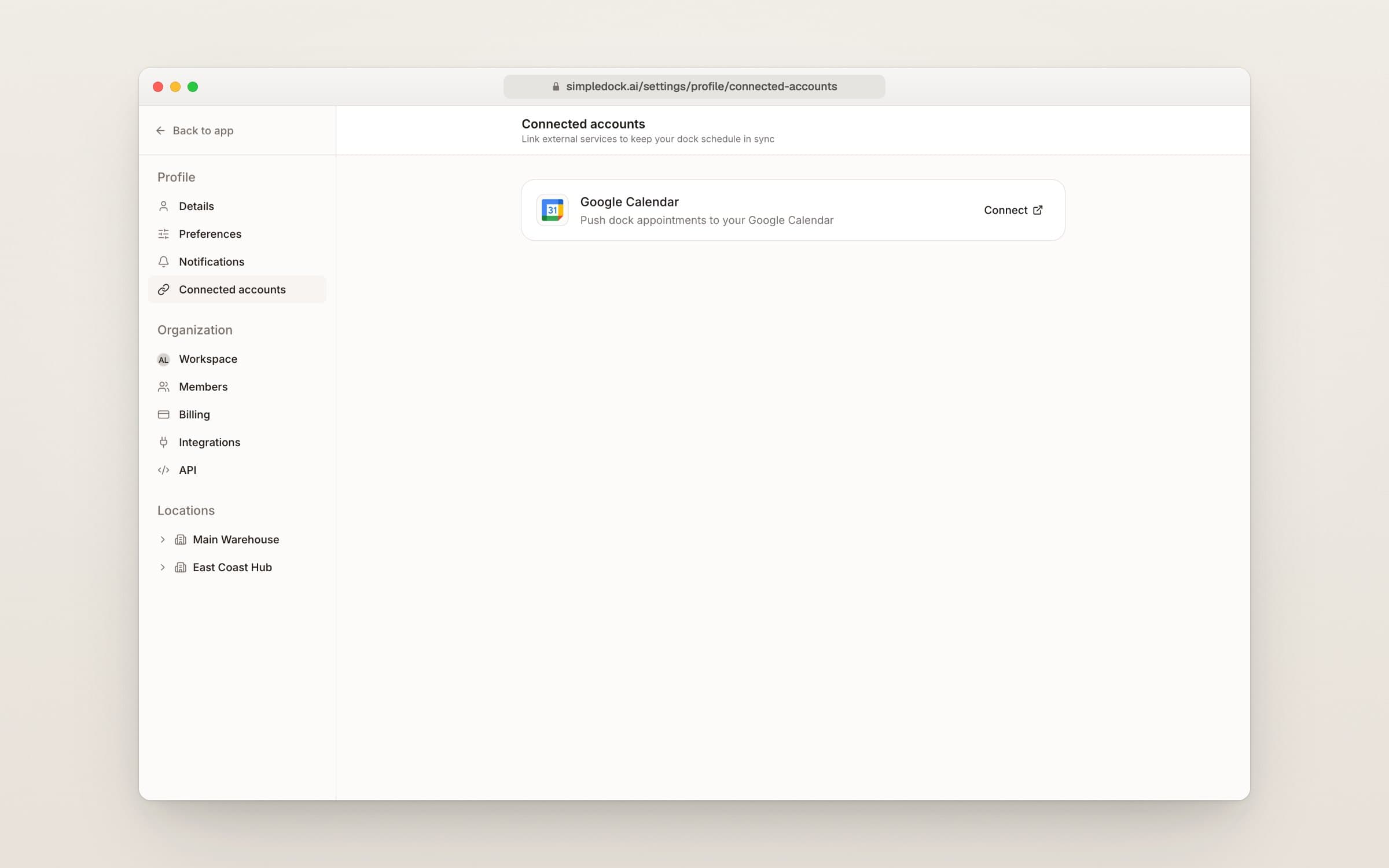
    Connected accounts settings with a Google Calendar card and a Connect button
    Connect your Google Calendar from your profile settings.
    • Each person connects their own Google account.
    • Turn syncing on or off for each location.
    • Pick which of your Google calendars gets the appointments.
    • Canceled appointments are removed from your calendar.
    • Changes go one way, from SimpleDock to Google.
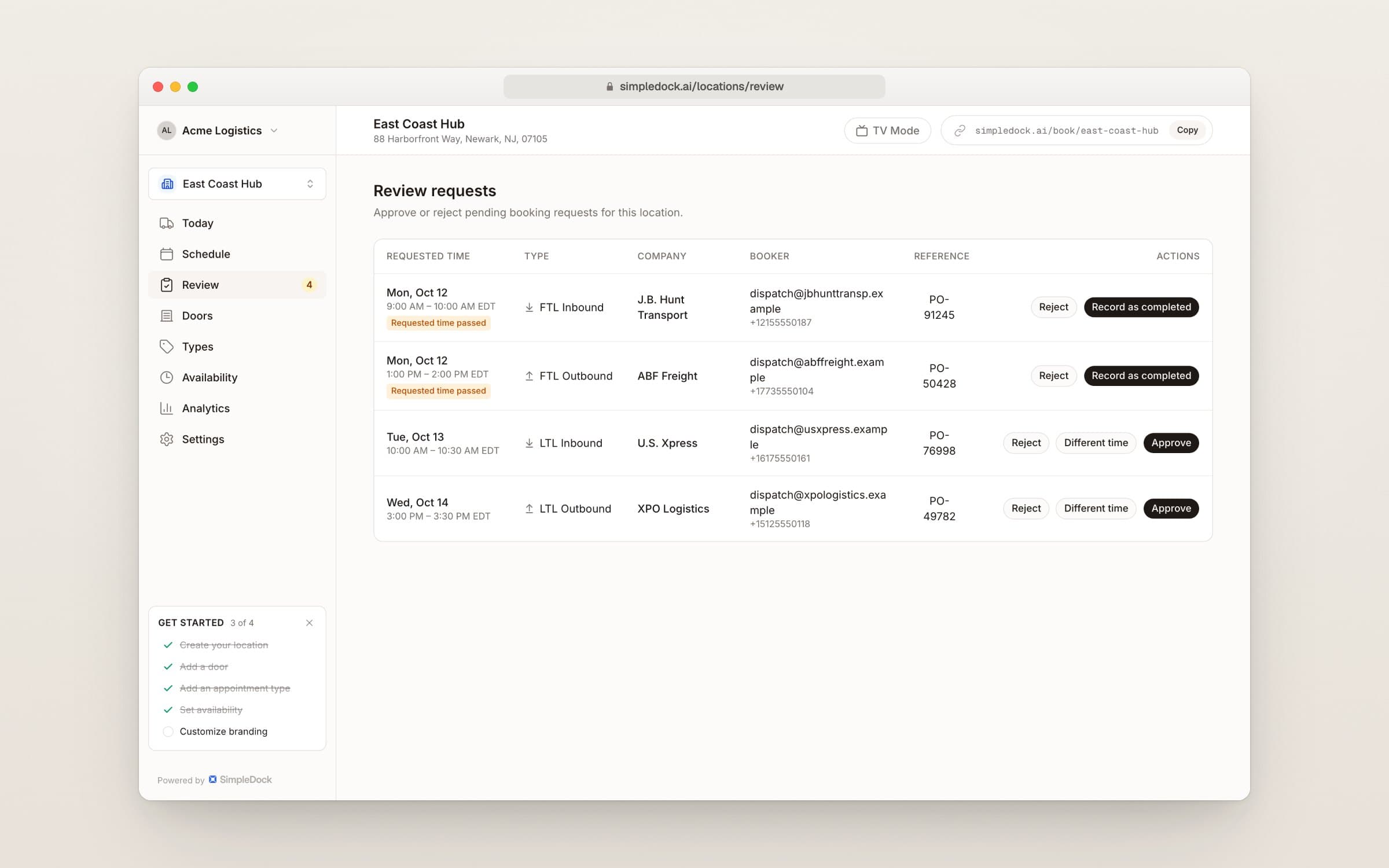
  16. Approve truck bookings before they're confirmed

    You can now require approval for new bookings at any location. Carrier requests wait for your team to approve, move to a better time, or reject before the slot is confirmed.

    Review requests page listing pending truck bookings with Reject, Different time, and Approve buttons on each row
    Every request waiting on you, in one list.
    • Turn it on for each location under Bookings settings.
    • Approve, approve at a different time, or reject with a reason.
    • A new Review page lists every request waiting on you.
    • Pending trucks show as dashed amber blocks on the schedule.
    • Carriers get an email at each step, so they always know where they stand.